Contents
PSX CDURemote control for the CDUs of Aerowinx PSX
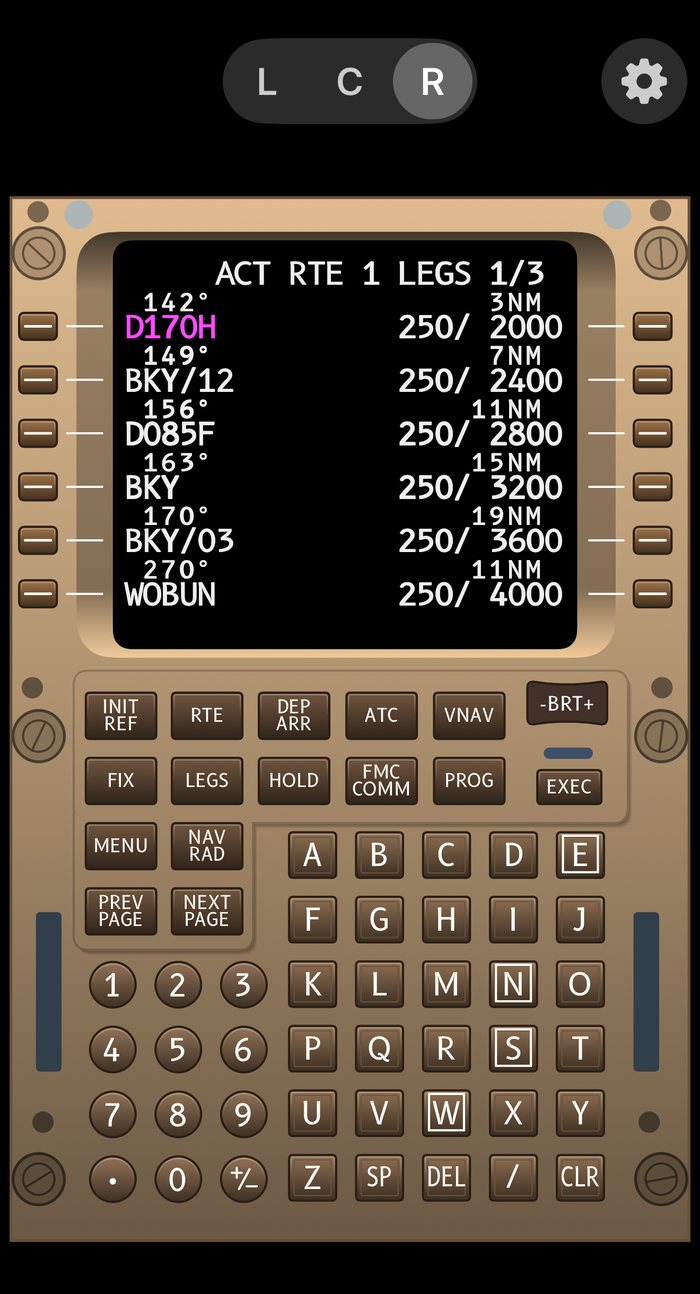
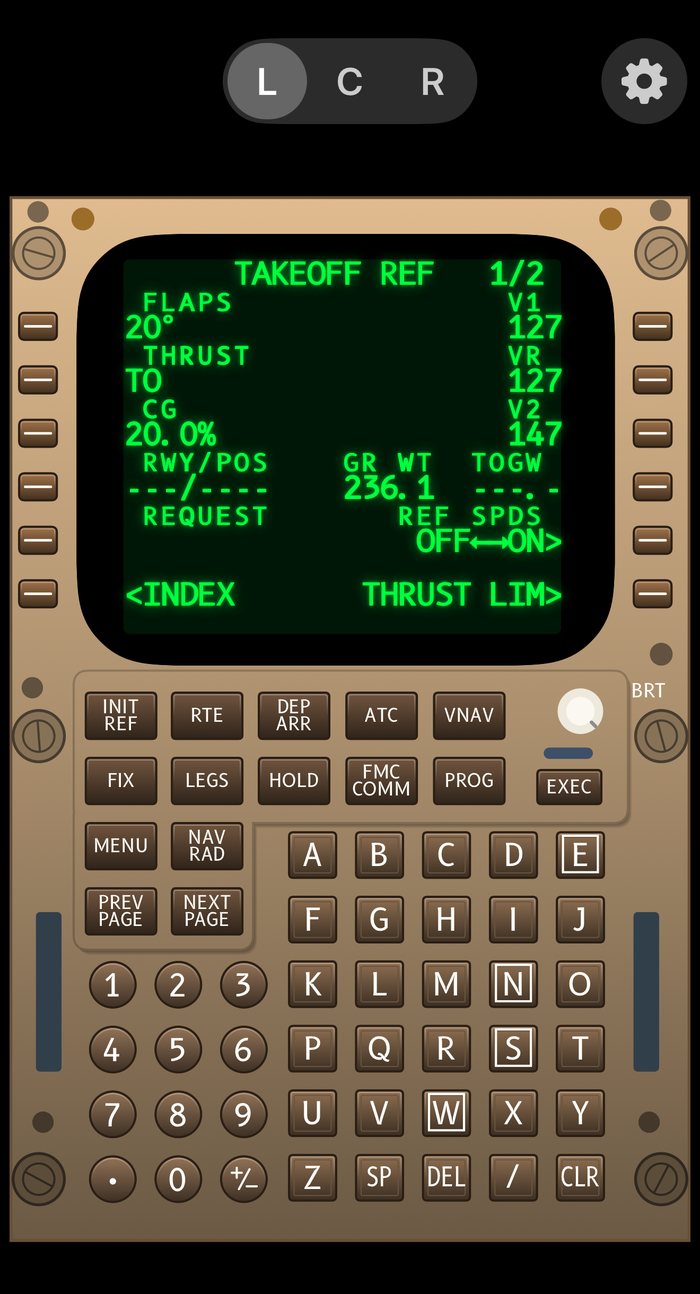
Press the keys of the left, centre and right Control Display Unit of the Precision Simulator 747-400 from your iPhone or iPad. The screens, the key lights and the cockpit lighting follow PSX over your network, in the colour LCD style of the newer FMC or the classic green CRT. No PSX at hand? A built-in demo mode lets you try everything.
01Getting started
You need three things:
- Aerowinx PSX running on a Mac, Windows or Linux computer. PSX is a separate product by Aerowinx; this app only talks to it.
- The computer and your iPhone or iPad on the same network (usually the same Wi-Fi).
- PSX set up as the network Main Server, which takes a few clicks (next section).
Then open the app, type the computer's address in ⚙ → PSX Server and tap Connect. The dot turns green and the CDU shows what PSX shows.
Not near your simulator? Switch on Demo mode in the settings to try the app first.
02Connecting to PSX
Setting up PSX
- In PSX open the Instructor and go to the Network page.
- Set Main to Server and start it. PSX now listens on port
10747(the default). - Find the computer's IP address, for example
192.168.1.77(Network settings of the computer, or its router's device list).
If PSX is already a client of another PSX (for example the main PSX on another computer), connect the app to the PSX that is the Main Server. The app takes the place of one more network client.
Setting up the app
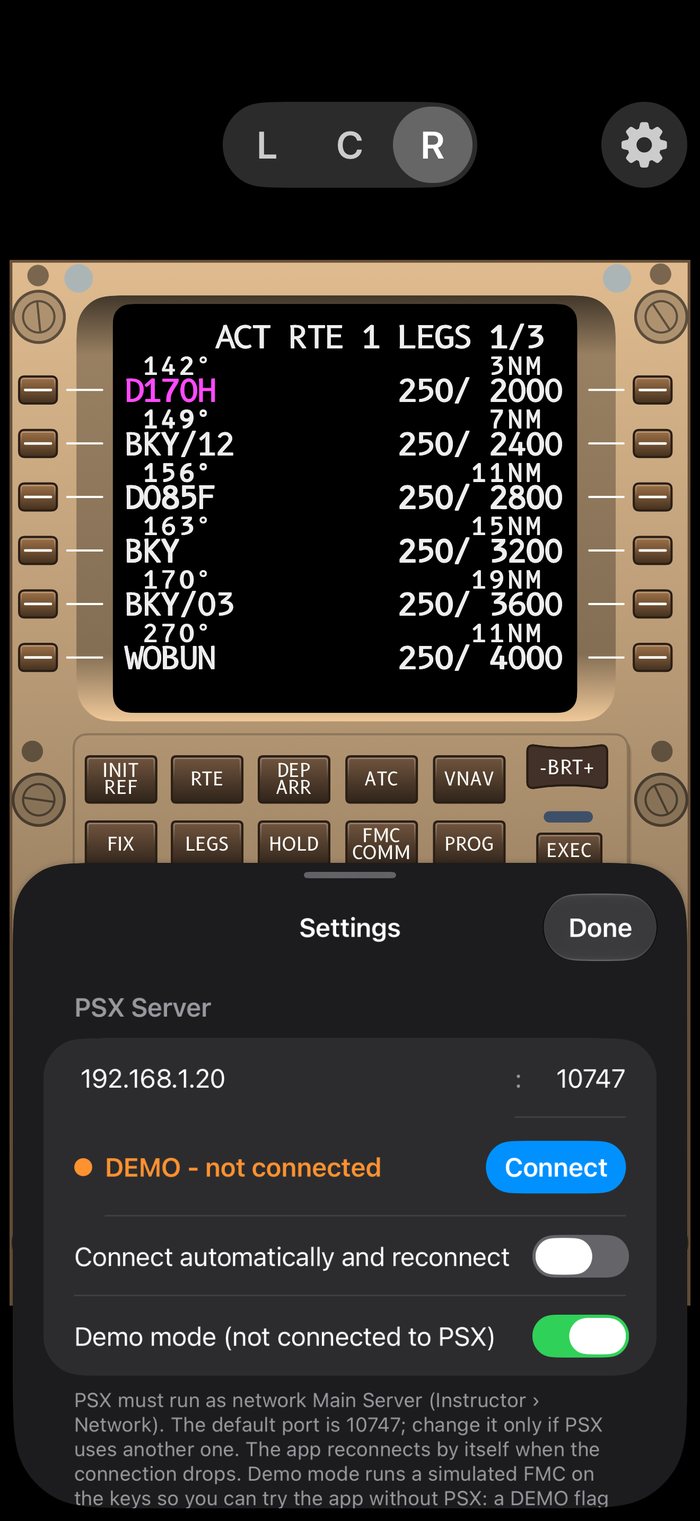
- Tap the ⚙ gear wheel to open the settings. PSX Server is the first section.
- Type the computer's IP address (or its name). The port is on the right of the address and is
10747unless you changed it in PSX. - Tap Connect. While connected the status shows a green Connected; tap Disconnect to leave.
The addresses you used are kept as shortcuts below the status line. With Connect automatically and reconnect on (the default) the app connects when it starts and comes back by itself when the connection drops, for example after the phone slept. Turn it off if you want to connect by hand: a failed connection then stays down until you tap Connect or Retry.
Local Network permission
The first time you connect, iOS asks whether PSX CDU may find and connect to devices on your local network. Tap Allow: without it iOS blocks the connection to your computer, and the app shows a connection error.
If you tapped “Don't Allow” by mistake, open the iOS Settings app, go to Privacy & Security → Local Network (or scroll to PSX CDU in Settings) and switch it on.
03Using the CDU
Keys and lights
Every key of the real unit is there and works as soon as you touch it: the six line select keys on each side, the mode keys (INIT REF, RTE, DEP ARR, ATC, VNAV, FIX, LEGS, HOLD, FMC COMM, PROG, MENU, NAV RAD, PREV PAGE, NEXT PAGE), EXEC, the number pad with +/-, the letters with SP, DEL and /, and CLR.
- CLR: a short press clears a character or message; hold it to clear the whole scratchpad, as on the real unit.
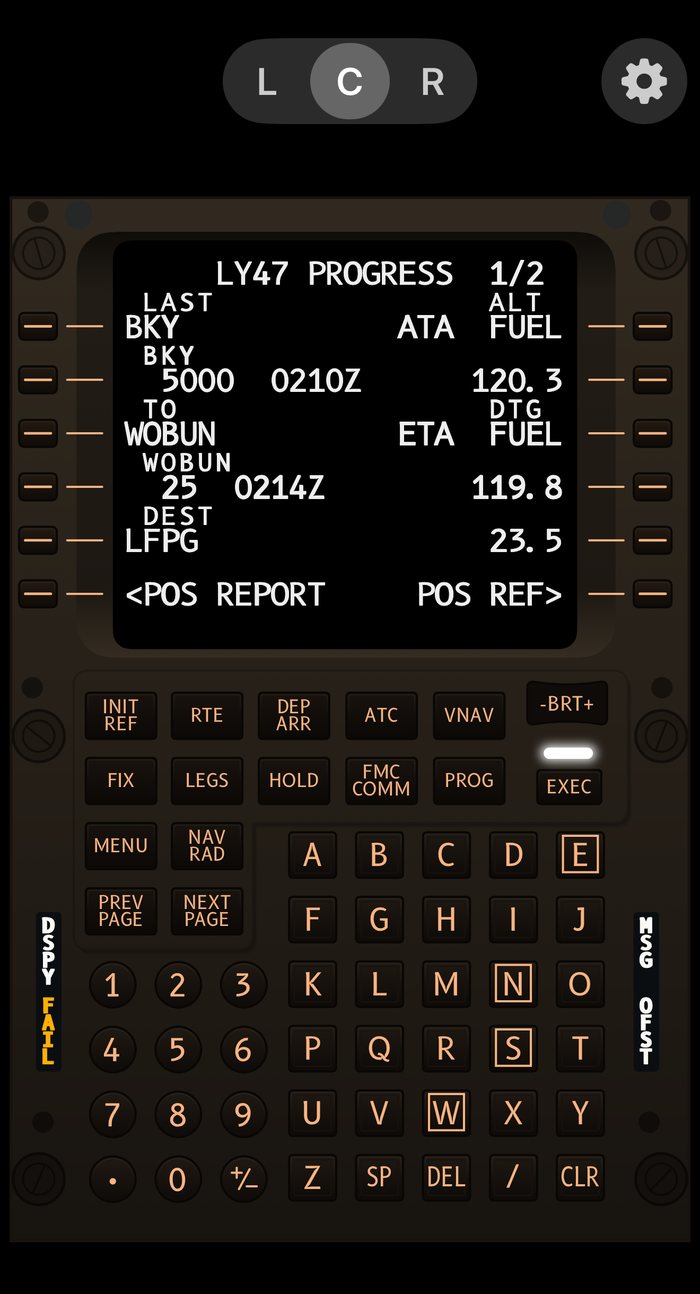
- EXEC lights white when PSX has a change waiting to be executed. DSPY, MSG, OFST and FAIL light up at the sides, exactly when PSX lights them.
- Keys give a haptic tick and a click sound; both can be changed in the settings (Key sounds and haptics).
The app sends the key to PSX and shows the screen that PSX answers with, so a page looks the same as on PSX's own CDU. There is nothing to learn that isn't in the PSX and Boeing documentation.
Hardware keyboard: with a keyboard connected to the iPad or iPhone, letters and digits type into the scratchpad, Space is SP, Delete is CLR (hold it to clear the scratchpad), Return is EXEC, /, . and - work as on the unit, and ↑ ↓ are PREV PAGE and NEXT PAGE.
Switching between L, C and R
The three-way switch at the top chooses which of the three CDUs you operate: L (captain), C (centre) or R (first officer). You can also swipe on the black screen of the unit:
| Swipe | CDU |
|---|---|
| left | L |
| down | C |
| right | R |
In ⚙ → CDU switch you can show the switch always, show and hide it by tapping the black area next to the unit, or hide it completely, and turn the swipe on or off.
Brightness
On the LCD unit the -BRT+ key at the top right dims or brightens the screen: tap the left or right half, or hold it to keep going. On the Classic CRT unit it is a round knob: swipe it up or to the right to brighten, down or to the left to dim. In ⚙ → Brightness you choose where the brightness comes from:
- PSX Sync: the app uses PSX's own CDU brightness and sends your changes back to PSX.
- Adjustable (standalone): the brightness is only on your device, with a slider in the settings.
- Always full: the screen is always at full brightness.
iPad: two CDUs, real size
On an iPad in landscape two CDUs stand side by side: the one you chose with the switch on the left, and a second one on the right, which has its own C / R switch (R is the default). Switch it off with Two CDUs on wide screens.
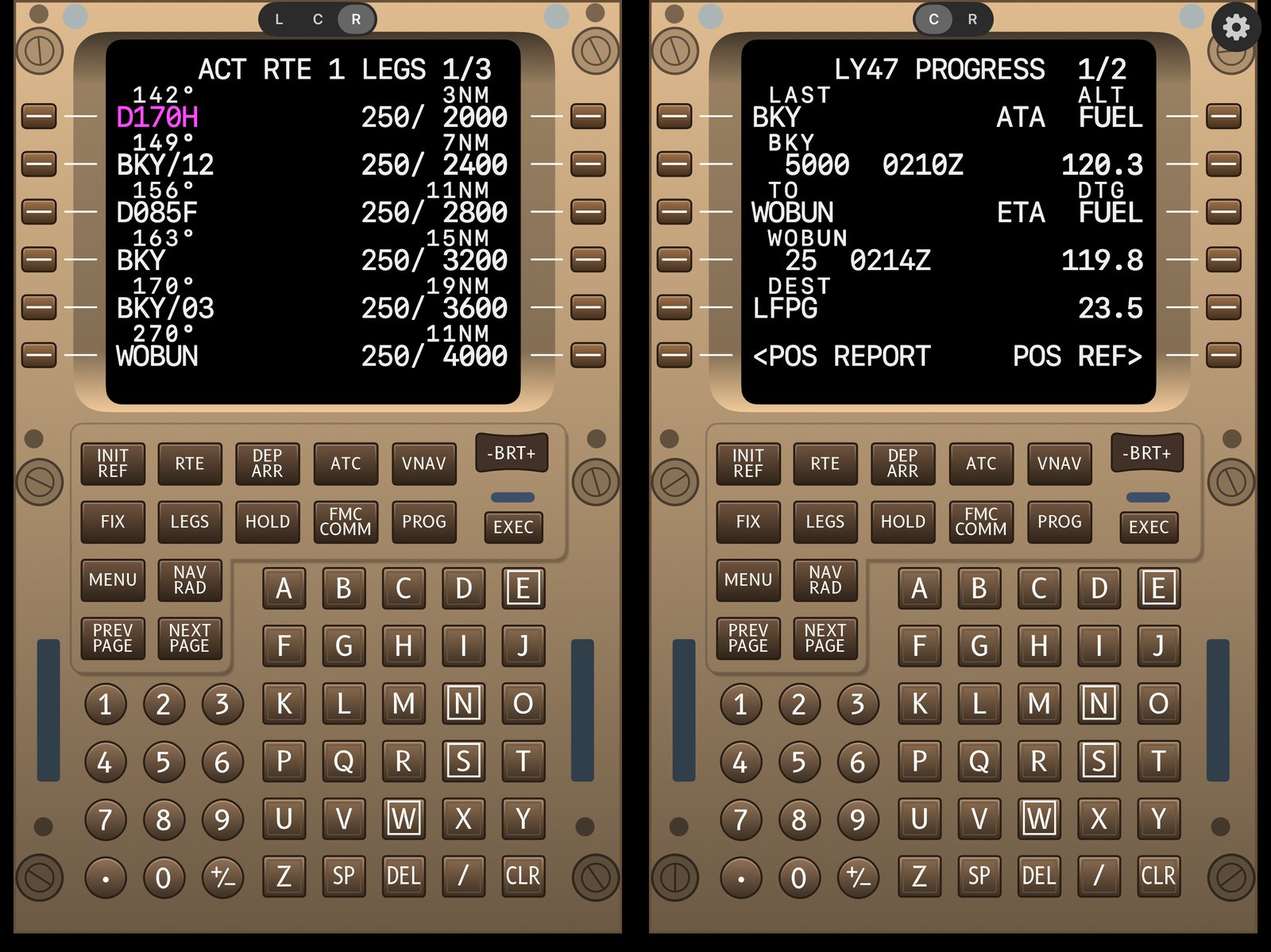
Unit size on the iPad is Maximum (the unit fills the screen) or Real size, which shows the CDU as big as the real one: 5.75 × 9.00 inches (146 × 229 mm). If the screen is too small for that, the unit is shown at maximum size.
When you open the settings on an iPad, they appear as a panel next to the unit, so you can change a setting and try the CDU at the same time. Tap outside the panel (but not on a key) or Done to close it. The panel reopens at the place where you left it.
04Looks
LCD and Classic CRT
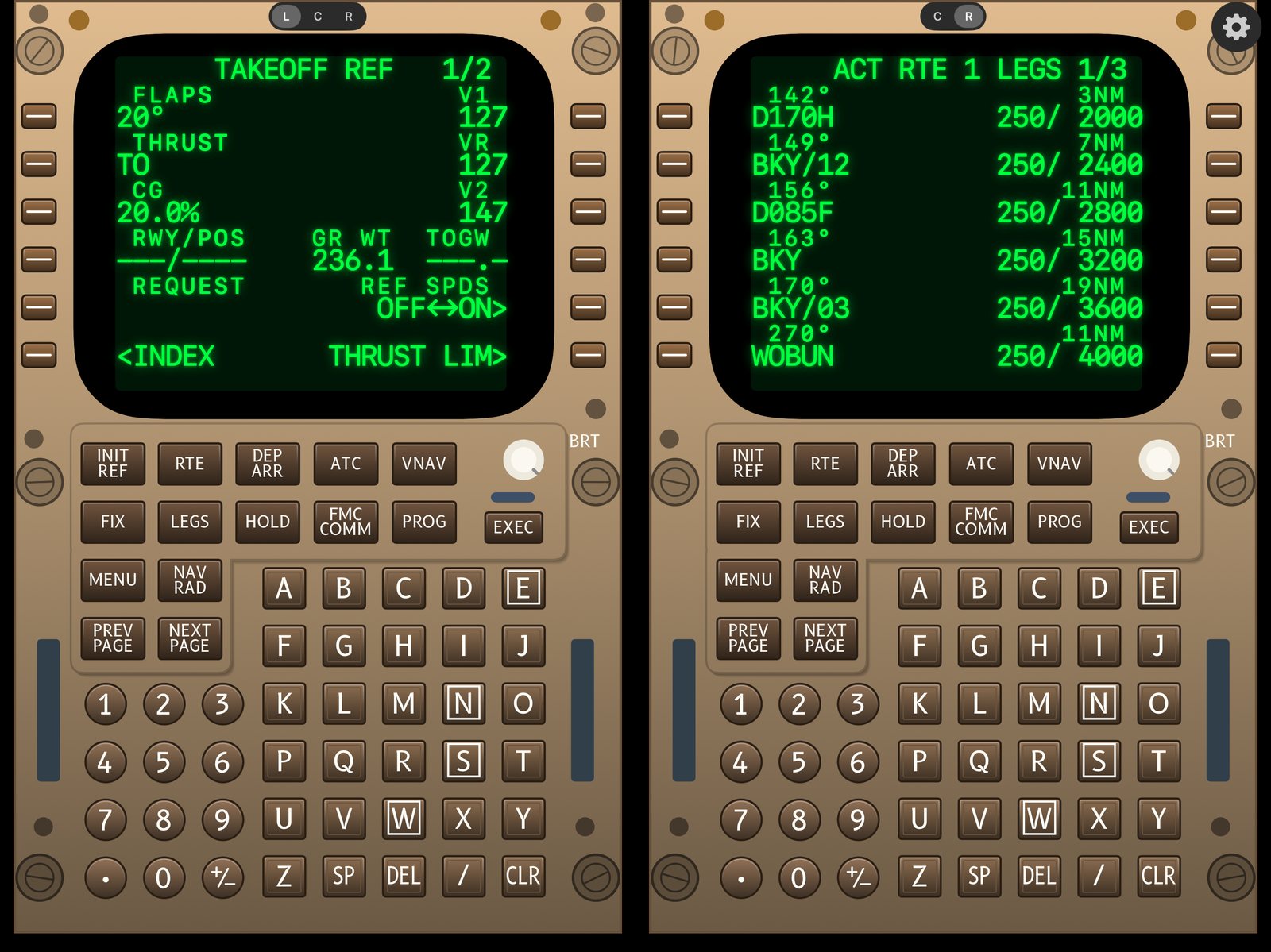
⚙ → Screen → Style picks the look of the unit:
- Auto (follow PSX): the app shows the style that PSX uses for each CDU (the newer colour LCD CDUs or the classic green CRT, as set in PSX's preferences).
- Legacy (green CRT): the classic unit with the green screen and the round brightness knob.
- NG (colour LCD): the newer unit with the colour screen and the -BRT+ key.
Both have the same size and layout of keys. For the Classic CRT there are two extras: Glow (Off, 1 to 4) adds a soft phosphor bloom round the characters, and Dark green text area paints a very dark green behind the character field only (24 columns by 14 rows), as on a real tube.
Screen fonts
PSX draws its CDU with its own built-in characters, so the app offers open fonts that come closest: B612 Mono, IBM Plex Mono, Anonymous Pro and the System monospaced font, each in Regular, Medium or Bold. The preview in the settings uses the same drawing code as the display.
Cockpit lighting
The unit is lit like the real cockpit. With ⚙ → Cockpit lighting → PSX Sync the app follows PSX: the dome light, the flood light, the CDU panel light and the daylight through the windows (worked out from the position and the time of your simulated flight, in the same way as PSX does it). At night the bezel and keys go dark and the key legends glow; by day the unit is bright. If you prefer a fixed look, choose Bright (daylight), Medium or Dark (backlit).
Key backlight is Original (the legends follow the lighting) or White (always white, for high contrast).
Annunciator lights
The side lights DSPY, MSG, OFST and FAIL have two colour schemes:
- Standard (default): DSPY, MSG and OFST white, FAIL amber.
- New Gen: DSPY, MSG and OFST amber, FAIL red.
05Key sounds and haptics
In ⚙ → Keys:
- Haptic feedback gives a short tick on every key (on by default).
- Key click plays a sound on key down and a softer one on key up. The Key click sound menu offers Cockpit (the default, a realistic mechanical key), Mechanical, Dome, Clack, Click, Tick, Beep and Pop.
- Key click volume is a fader with the level shown in dB at the right. It starts at 25 % and is scaled so the quiet end is fine-grained.
The sounds mix with whatever else is playing and follow the iPhone's silent switch. Turn Key click off for silence.
06Demo mode
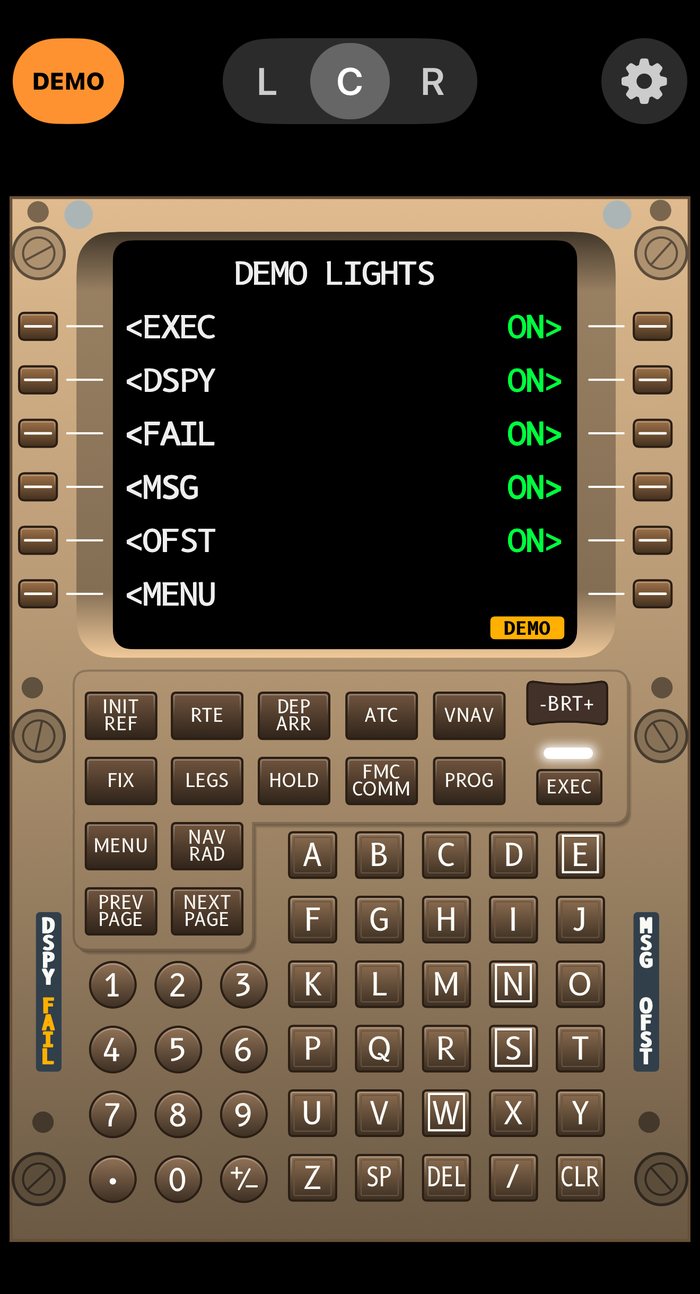
Demo mode lets you try the whole app without PSX and without a network. Switch it on in ⚙ → PSX Server → Demo mode. An orange DEMO flag stays on the screen so you can never mistake it for a connection to PSX.
A small simulated FMC answers the keys: MENU, INIT REF, RTE, DEP ARR, LEGS, PROG, VNAV, FIX, HOLD, NAV RAD, FMC COMM, ATC, takeoff and performance pages, with a scratchpad you can type into and entries that are checked (an invalid entry gives the message INVALID ENTRY). The EXEC and MSG lights behave like the real ones. On MENU → DEMO LIGHTS you can switch the EXEC, DSPY, FAIL, MSG and OFST lamps on and off by hand.
Turn Demo mode off to connect to PSX again.
07All settings
| Setting | What it does |
|---|---|
| PSX Server | Address and port of PSX, status with Connect / Disconnect, recent servers, automatic connect and reconnect, Demo mode. |
| Screen font | Font and text weight of the CDU text, with a preview. Glow and the dark green text area for the Classic CRT. |
| Screen | Style (Auto, Legacy CRT, NG LCD), with two read-only lines that show which FMC and which LCD CDUs PSX reports. |
| Unit size (iPad) | Maximum or real size. |
| Cockpit lighting | PSX Sync, Bright, Medium or Dark. |
| Brightness | PSX Sync, Adjustable (standalone) with a slider, or Always full. |
| CDU switch | When the L C R switch is shown, and swiping on the screen to change CDU. |
| Touch areas | Show the outlines of the touch areas of every key (a quick look: tap the invisible area at the top left of the screen). |
| Keys | Haptic feedback, key click, click sound and volume. |
| Annunciator lights | Standard or New Gen colours. |
| Key backlight | Original or white legends. |
| Display | Keep the screen awake while the app is open, and two CDUs side by side on wide screens. |
08Troubleshooting
It says “Failed” or “Waiting” and never connects
Check, in this order: (1) PSX is running and its Instructor Network → Main is set to Server; (2) the address is the computer's
current IP address (it can change after a restart; look at the computer's network settings); (3) the port is 10747; (4) your
phone and the computer are on the same network, not a guest network, and no VPN is routing the traffic elsewhere; (5) the computer's firewall allows PSX to accept connections.
It works on my iPad but not on my iPhone (or the other way round)
Every device asks separately for the Local Network permission. Make sure it is on for PSX CDU in the iOS Settings of the device that fails.
The CDU shows the wrong style (LCD / CRT)
With Style → Auto the app follows PSX's own setting. Choose Legacy or NG to fix it.
The unit is dark or too bright compared with PSX
With Cockpit lighting → PSX Sync the lighting depends on PSX's lights and on the daylight at the position and time of your flight. The app uses the same steps as PSX, so a change in PSX shows up when PSX itself re-lights the cockpit. If you prefer a fixed look, choose Bright, Medium or Dark. Brightness of the screen itself is set under Brightness.
A key seems to be ignored, or CLR only works after a long press
PSX reads a key once per frame, so the app holds every key down for a moment. Touch the key cleanly; if keys still get lost, check the Wi-Fi signal and that no other program also sends keys to the same CDU.
No key click
Check ⚙ → Keys: Key click must be on and the volume fader raised (the default 25 % is quiet by design). The iPhone's volume and the silent switch also apply.
The settings panel opens at an odd place
The settings reopen where you left them. Scroll to the top for the connection section.
09FAQ
Is this made by Aerowinx?
No. PSX CDU is an independent app. It uses the network interface that PSX offers to other programs. Aerowinx and Precision Simulator are trademarks of their owner.
Which devices and systems does it need?
iPhone (portrait) and iPad (portrait and landscape) with iOS or iPadOS 17 or later. PSX runs on your computer.
Does it work away from home, over the internet?
It connects directly to PSX on your network. Over the internet it needs a VPN that makes your computer reachable by its network address. Opening PSX's port to the internet directly is not recommended.
Can I control PSX's own CDUs and an external real CDU at the same time?
Yes. The app is one more network client. Keys sent by the app and by other devices all reach PSX.
Does the app collect any data?
No. There are no accounts, no analytics and no advertising. The app talks only to the PSX address you enter. See the Privacy Policy.
I found a bug or want a feature
Please write to me: see Contact.